cPGuard Security Suite in AdminBolt's Hosting Control Panel
A shared hosting server is only as clean as the least careful site on it. One outdated plugin or one reused FTP password is enough for a web shell to land in a customer's uploads folder. From there the problem is yours: the abuse report, the IP address on a blocklist, the support ticket from the customer who has no idea what happened.
cPGuard Security Suite by OPSSHIELD is one of the suites hosting providers use to stop that: malware scanning with automatic clean-up, a web application firewall, a firewall with a login failure daemon and a management app. This article shows what it looks like when cPGuard runs on a server managed by the AdminBolt hosting control panel: what you install, what you see, what your clients see and what you no longer have to do over SSH.
We are glad to say that AdminBolt and OPSSHIELD now work together on this integration. OPSSHIELD supports our development and testing with cPGuard licences.
The Short Answer
AdminBolt installs cPGuard Security Suite from Health > Security or the Module Manager with your cPGuard licence key, then runs it like part of the panel. One page shows the version, the service, the licence and the connection to the cPGuard app. Buttons next to them handle the usual fixes. Your clients get their own cPGuard page with their scans, their detections and their quarantined files.
| What you need | Over SSH | With cPGuard in AdminBolt |
|---|---|---|
| See whether the server is protected | Run status and licence commands | Health > Security shows the engine, the service, the licence and real-time scanning |
| Apply or change a licence key | Edit the configuration by hand | Add or change the licence on the cPGuard page |
| Update cPGuard | Run the updater and check the result | Update CPGuard runs in the background and reports the outcome |
| Scan one customer's files | Find the home directory and start a scan | Scan an account and pick the hosting account |
| Tell a customer about infected files | Write a ticket | A bell notification plus an email |
| Keep login protection for the panel and mail | Add rules again after every update | The panel checks its rules and puts them back |
What You Get
- One answer to "is this server protected?" Health > Security names the engine in use, whether its service runs, whether its licence is active and whether uploaded files are scanned in real time.
- Every malicious file on one list. Health > Malware lists what cPGuard found in each hosting account, where it is now and what you can do with it: move it to quarantine, put it back or delete it.
- Clients who help themselves. With cPGuard in their hosting plan, clients see the scans of their own account, start a scan of their own files and restore their own quarantined files.
- Clients who hear about a threat from you first. When cPGuard flags files in an account, the client gets a notification in the panel and an email to their contact address.
- Login protection that stays in place. cPGuard's login failure daemon also guards panel, webmail and FTP logins. The panel puts those rules back when an update removes them.
- No watch list to maintain. New accounts, renamed domains and imported accounts are watched by cPGuard without anybody editing its configuration.
The Problem It Ends
Server security suites are good at finding malware. They are less good at fitting into the way a hosting company works, because the control panel and the suite usually know nothing about each other.
Without an integration, the routine looks like this. A licence expires or moves to a new IP address, so somebody opens SSH and applies the new key. An update ships, so somebody runs the updater, waits and checks that the new version installed. A customer renames their main domain. The suite keeps watching the old document root until somebody notices. The login failure rules for the panel, webmail and FTP are added by hand and quietly disappear after the next update. A scan finds an infected file and the only way the customer learns about it is a ticket written by your support team.
Each step is small. Together they turn a security product into a maintenance job. The steps that get skipped are the ones that leave a server exposed.
How It Works From Where You Sit
Pick The Engine On Health > Security
Health > Security compares the three malware protection engines AdminBolt supports: ImunifyAV, Imunify360 and cPGuard. Only one can be active on a server. The cPGuard card says what it covers (malware scanning of all accounts, real-time scanning of uploaded files, automatic clean-up of infected files, a web application firewall plus firewall and brute-force protection) and that it needs a cPGuard licence key.
Install on the cPGuard card opens the installer, where you paste your cPGuard licence key. The same installer opens from the Module Manager. On our test server the installation finished in under a minute.
If ImunifyAV or Imunify360 is already installed, the installer refuses to run and names the module to remove first. If the installation ends without a working cPGuard, for example because the licence key is missing or cPGuard refuses it, the panel reports the installation as failed with cPGuard's own reason. The module is then not marked installed, so you correct the key and install again.
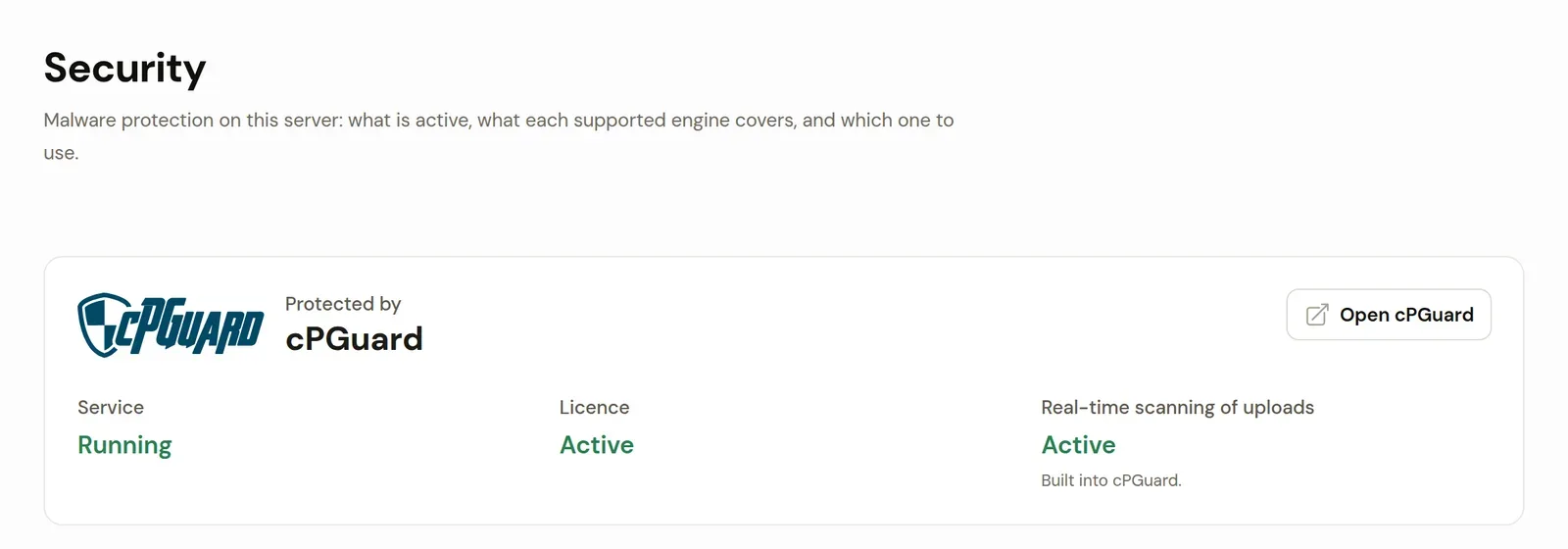
Once cPGuard runs, the top of the page says the server is protected by cPGuard and shows three readings: the service, the licence and real-time scanning of uploads, which cPGuard does itself.
Run It From The cPGuard Page
The cPGuard page under Modules > CPGuard is where you look after the suite day to day. It reports what the panel can see:
| Reading | What it tells you |
|---|---|
| Installed | Whether the suite is on this server |
| Service | Whether cPGuard's scanner runs |
| Connected | Whether the cPGuard app can reach this server |
| Licence | Active, Not active or Unknown; without an active licence the page tells you where to add a key |
| WAF rules | Which rule set the web application firewall uses |
| Login protection | Whether the AdminBolt login rules are in place, plus when that was last checked |
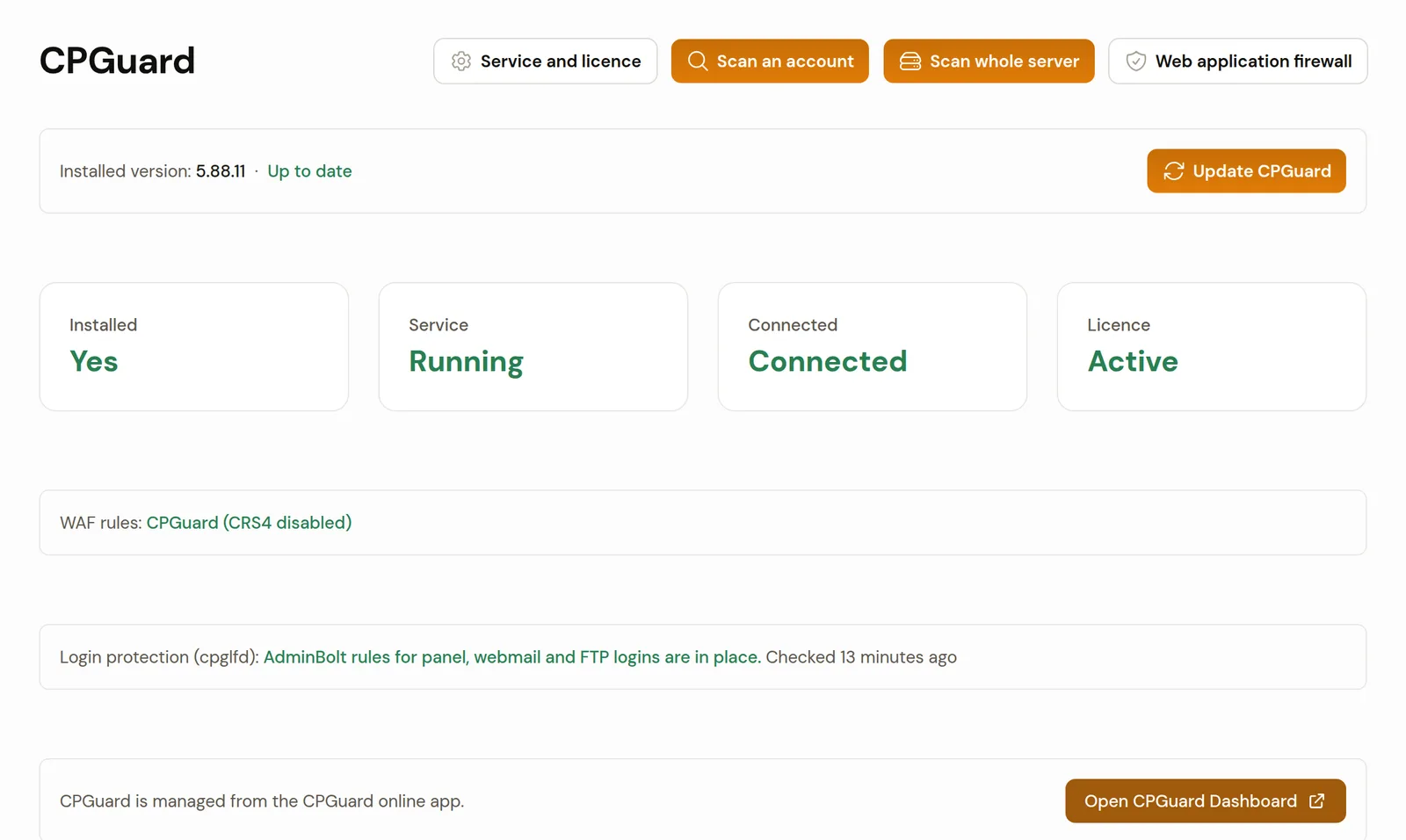
When the panel cannot reach the suite, the status area says so instead of showing a stale all-clear.
Licence And Service Without SSH
The Service and licence menu covers the jobs that used to need a terminal:
- Restart the CPGuard service restarts the scanner and tells you whether it runs afterwards. If it does not run because cPGuard has no active licence, the result says that too.
- Add or change the licence applies the key from your cPGuard client area, or replaces the key already applied. The licence has to be issued for the server's IP address. The result says whether cPGuard accepted it.
- Refresh the licence data fetches the licence from cPGuard again, for example after you renewed or upgraded it.
- Enable the client plugin and Disable the client plugin choose what your clients see, described further down.
The licence reading on the page and on Health > Security is the same one, so a licence problem shows up where you already look.
Updates You Can See Finish
A line at the top of the cPGuard page shows the Installed version and whether cPGuard offers a newer one. Update CPGuard runs cPGuard's updater after a confirmation. The update downloads about 80 MB and can take several minutes, so it runs in the background and you can leave the page.
When it finishes, the panel confirms the new version is installed and reports one result: updated, with the old and the new version; already up to date; or failed, with the reason and the next step. The last result stays on the page as Last update. A second update cannot start while one is running.
That check matters more than it sounds. An updater that exits without error is not the same as a server running the new version. After a security update, that difference is what you need to know.
Scans Of One Account Or The Whole Server
cPGuard scans uploads as they arrive. For everything else the cPGuard page has two buttons:
- Scan an account scans every file in the home directory of the hosting account you pick.
- Scan whole server scans every directory on cPGuard's watch list. On a busy server that takes hours. Only one whole-server scan runs at a time.
The Manual scans list keeps the history: scans you started here, scans your clients started from their own page and scans started with cPGuard's own tools on the server. Each row shows the account, the target, who started it, the status, the start and finish times, the number of files scanned and the number of detections. Detections opens what the scan found, also while it is still running. Stop stops a running scan. Delete removes a finished scan and its results from cPGuard and from the list.
On our test server we placed the standard EICAR antivirus test file in a site's uploads folder. cPGuard flagged it within a minute, before any manual scan ran. The account scan we started afterwards listed the same detection among 12 files scanned.
Every Detection On One List
Health > Malware lists every malicious file found in a hosting account, whichever engine found it, with the account, the file, the engine, the detection name, its status and when it was found. From the same list you move a file to quarantine, restore it or delete it.
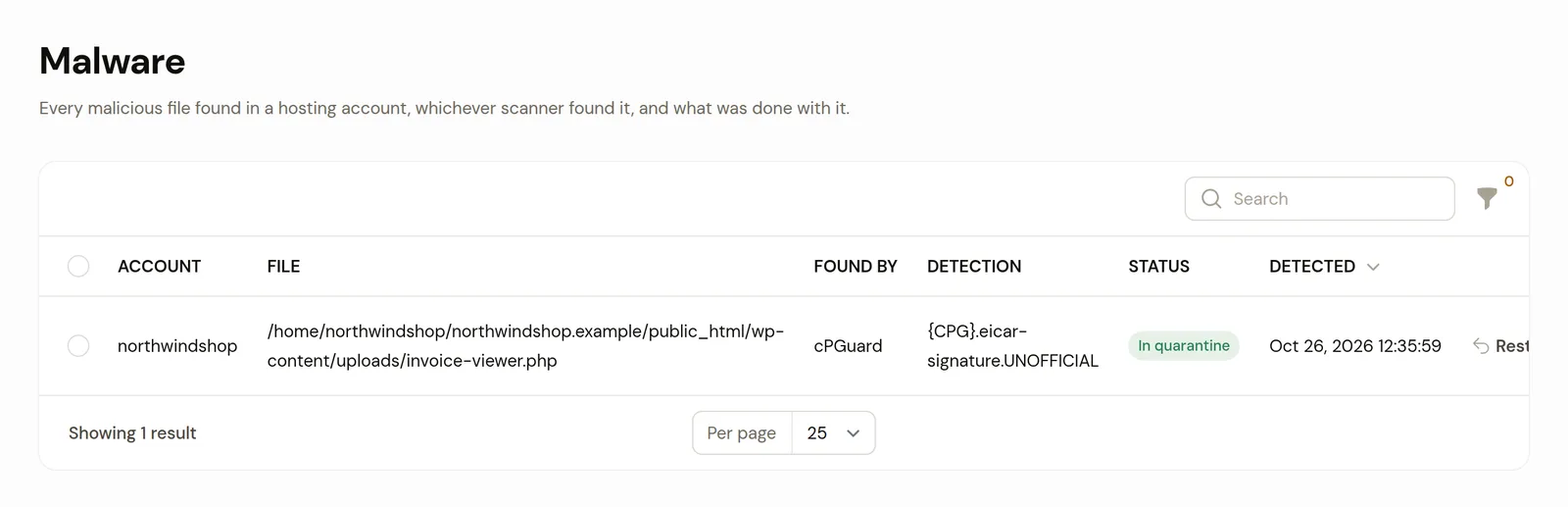
Files that cPGuard itself moved to its quarantine are listed as In cPGuard quarantine and are restored through cPGuard from the same list. If cPGuard no longer keeps a copy, the restore fails with a message instead of silently doing nothing.
Web Application Firewall
The Web application firewall menu chooses which rules filter web requests:
- Use CPGuard WAF (disable CRS4) switches the firewall to cPGuard's own rules and restarts the web server as needed.
- Restore CRS4 rules switches back to the OWASP Core Rule Set that ships with the panel.
The WAF rules reading on the cPGuard page tells you which set is in use. Treat a switch as a change to how every site on the server is filtered: a different rule set blocks different requests, so plan to review false positives afterwards.
Under LiteSpeed, the cPGuard app does not report firewall events. Blocking is not affected. The page says so where it applies.
Login Protection For Panel, Webmail And FTP
cPGuard has its own login failure daemon. While it runs, AdminBolt keeps its own rules in it for panel, webmail and FTP logins, with the same limits as the panel's own login jails, plus rules for the web server and the spam filter. The rules are written to leave the server's own addresses and the addresses on your Fail2Ban whitelist alone.
The panel checks these rules regularly and after the cPGuard installation. When they are missing or changed, for example after a cPGuard update, it puts them back. They are removed together with cPGuard. The Login protection line on the cPGuard page shows the result of the last check:
| Result | What to do |
|---|---|
| The rules are in place | Nothing |
| The rules were missing and were put back | Nothing; this is the panel doing its job after an update |
| The rules are excluded on the server on purpose | Nothing; the panel leaves an exclusion alone |
| The rules could not be put in place | Read the reason in the panel log |
An address the daemon bans shows up on the Fail2Ban Jails page in the cpguard-lfd jail, so you see the block in the same place as every other ban and lift it there.
If the daemon is stopped while cPGuard keeps running, those logins lose that protection. The cPGuard page then says so on a line of its own. The cPGuard row in the service list on Health reads Warning instead of Running.
What Your Clients See
Give clients the cPGuard page through the CPGuard feature in their hosting plan. They open it under Security > CPGuard in the client panel.
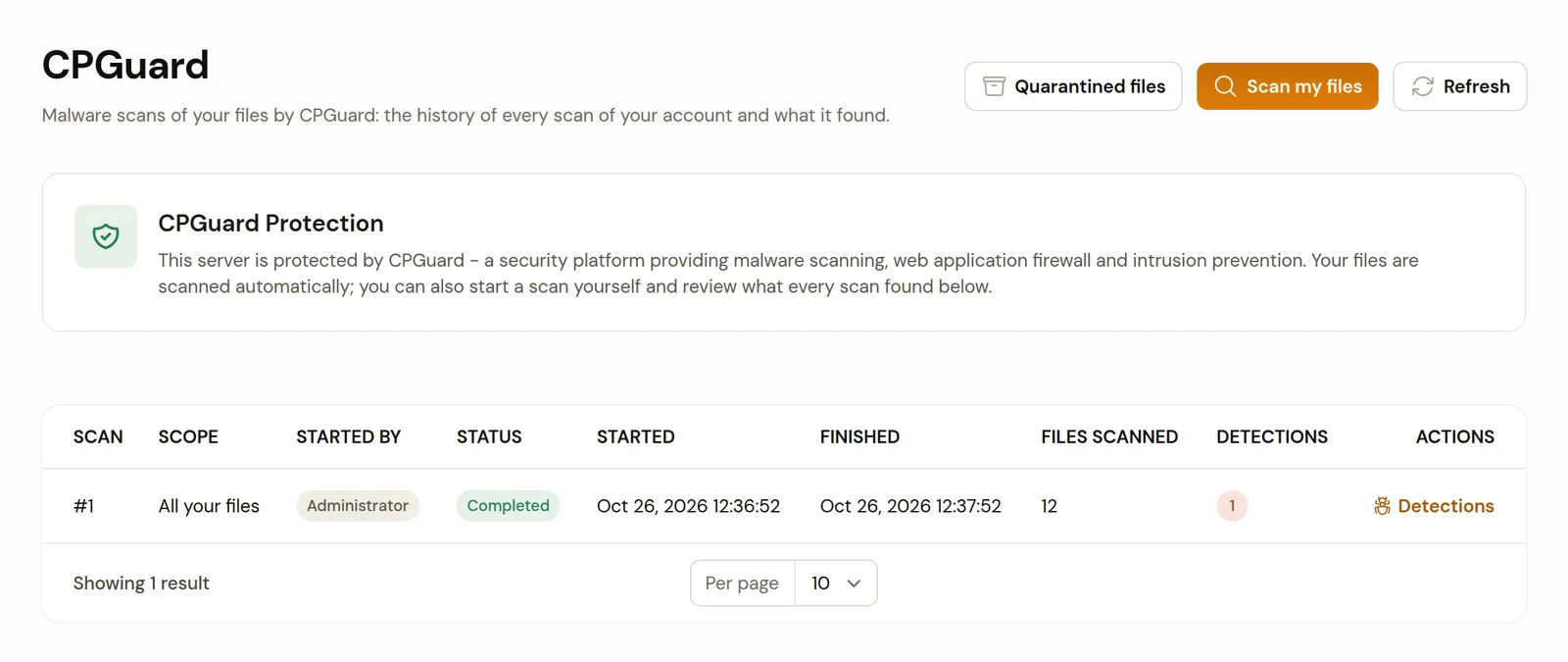
On that page a client:
- sees every scan of their account, including the ones you ran, with what each one found,
- starts a scan of their own files with Scan my files (how often is limited; the dialog says when the next one can start),
- stops a scan they started,
- restores files cPGuard moved out of their website under Quarantined files, up to 50 at a time.
Clients see only the files in their own account. A restore fails with a clear message when another file already sits at the original path, when the folder no longer exists or when cPGuard no longer keeps a copy. The page also warns that cPGuard still detects a restored file and may quarantine it again, which is the right warning to give somebody about to put a flagged file back.
The cPGuard Client Plugin
Some providers prefer cPGuard's own client interface. Enable the client plugin on the cPGuard page switches it on for clients whose plan includes the cPGuard feature. They then see cPGuard's dashboard, detections, manual scans, WAF and bot statistics and CMS threats for their own account, while Quarantined files stays at the top of the page. The plugin is off by default. Disable the client plugin takes clients back to the AdminBolt scan page.
Threat Notifications And Suspensions
When cPGuard flags files in a hosting account, the client is told twice: a notification in the bell at the top of the client panel plus an email to the account's contact address when one is set. The message names the engine, lists the files with what was found and what has become of each one. It tells the client to clean anything they did not put there and to change their passwords.
Further detections in the same account shortly after the first are gathered into one digest, so a client with a compromised site gets one useful message instead of dozens.
When cPGuard decides to suspend an account, the panel suspends that hosting account the way an administrator would. Every administrator gets a notification with cPGuard's reason. The client hears about it in the panel and by email. If you set a contact email on an account, cPGuard gets it too and may send its own notices to that address.
Accounts Stay In Step
Hosting accounts and domains are kept in step with cPGuard as they are created, changed and removed, also after a web server switch. cPGuard watches the document root of every domain, also after a domain is renamed and for accounts brought in by an import. The panel checks cPGuard's watch list regularly and corrects it.
For an administrator this is the quiet part of the integration. It matters most during a migration: the accounts you import are protected from the moment they land, without a separate step in a runbook.
Every control on the cPGuard page except Update CPGuard is also available on the administrator REST API, so the same tasks can run from your own automation.
Where It Fits Next To The Alternatives
Health > Security puts the three engines side by side:
| ImunifyAV | Imunify360 | cPGuard Security Suite | |
|---|---|---|---|
| Licence | Free | Paid, activation key from CloudLinux | Paid, licence key from OPSSHIELD |
| Malware scanning of all accounts | Yes | Yes | Yes |
| Real-time scanning of uploads | Yes, through the panel | Built in | Built in |
| Automatic clean-up of infected files | No | Yes | Yes |
| Web application firewall | No | Yes | Yes |
| Firewall and brute-force protection | No | Yes | Yes |
Choose cPGuard when you want a full suite with a WAF and a login failure daemon, or when your team already runs cPGuard on other panels. Choose ImunifyAV when you want free scanning and are happy to keep the panel's own firewall and Fail2Ban. Imunify360 is the other full suite; our official cooperation with CloudLinux covers it.
Switching later is supported. Switch to this engine on Health > Security removes the current engine first, with its scan history and settings, then installs the new one. Restore any file you still need from cPGuard's quarantine before you switch, because files in cPGuard's own quarantine go with it. Files moved to quarantine from Health > Malware stay in the panel's quarantine through the switch.
Common Mistakes
- Installing cPGuard on a server that still runs ImunifyAV or Imunify360. The installer refuses and names the module to remove. Remove it first, or use Switch to this engine on Health > Security, which does both steps.
- Applying a licence issued for another IP address. A cPGuard licence is tied to the server's address. Issue it for this server in your cPGuard client area, then use Add or change the licence.
- Assuming the update worked because the updater finished. Read the Last update line. If it says the update did not install correctly, run Update CPGuard again.
- Switching the WAF rules on a busy server without a plan. Different rules block different requests. Switch at a quiet hour and watch for false positives.
- Stopping the login failure daemon to debug something and forgetting it. Those logins go unguarded. The Warning on Health is the reminder; start the daemon again.
- Leaving the contact email empty. Clients still get the notification in the panel, but no email. Ask clients to keep their address current.
- Switching engines with files in cPGuard's quarantine you still need. Restore them first. They are removed with cPGuard.
FAQ
Q: Does AdminBolt support cPGuard?
A: Yes. AdminBolt installs and manages cPGuard Security Suite next to ImunifyAV and Imunify360. Paste your licence key into the installer on Health > Security.
Q: Do I need a separate cPGuard licence?
A: Yes. cPGuard is a paid product from OPSSHIELD and the installer asks for its licence key. The licence has to be issued for the server's IP address.
Q: Can I run cPGuard and Imunify360 on the same AdminBolt server?
A: No. Only one of ImunifyAV, Imunify360 and cPGuard can be active on a server. Health > Security switches between them and removes the current engine first.
Q: Do my hosting clients get access to cPGuard?
A: When their hosting plan includes the cPGuard feature, clients get a cPGuard page under Security for their own account. You can also enable cPGuard's own client plugin instead of the AdminBolt scan page.
Q: Will clients be told when malware is found in their account?
A: Yes, in the bell and by email when the account has a contact address. The message lists the files and what was found.
Q: Does cPGuard protect webmail and FTP logins on AdminBolt?
A: Yes, while cPGuard's login failure daemon runs. The panel keeps its login rules in that daemon. Bans appear on the Fail2Ban Jails page.
Q: Do I still use the cPGuard app?
A: Yes, for everything the app manages. Open CPGuard Dashboard on the cPGuard page creates a sign-in link for the server and opens the app in a new tab. The panel page is the connection and the switch, not a second console.
Q: Where is the full reference?
A: The cPGuard page of the AdminBolt documentation describes every button and reading.
Summary
cPGuard Security Suite by OPSSHIELD brings malware scanning with clean-up, a web application firewall and a login failure daemon to an AdminBolt server. The panel turns it from a separate product into part of the server: installed with a licence key, watched on one page, updated with a result you can read, its detections on one list and its findings delivered to the clients whose files they concern.
The integration grew release by release, from the first module in AdminBolt 1.7.0 to client pages in 1.9.0 and login protection, updates and threat notifications in 1.9.3. To get a cPGuard licence, visit OPSSHIELD.
Try it on your own server with the 30-day AdminBolt trial. Bring questions to Discord or the community forum.