Migration Guide
Moving a hosting server is mostly won before the day itself. This guide covers what to prepare in advance, what the move looks like once it starts, and what to check afterwards.
Our migration team plans and runs the move with you, free of charge, and stays on hand until you are happy with the result. Tell us what you run today and we will map it out for your setup.
Before you migrate
Work through this before anything moves. None of it is difficult, but each item is something that turns into a bad afternoon if it is discovered on the day instead.
Take stock of what you are moving.
Count your accounts, domains, mailboxes, and databases, and note the size of your home directories and your databases. Data volume decides how long the move takes; the counts decide how it is staged. Note the PHP version each site runs on, and anything non-standard: custom Apache directives, cron jobs, or extra packages your sites depend on.
Prepare the destination.
AdminBolt runs on AlmaLinux 9. Give the target server room for your data plus headroom, and prefer a clean install. If you would rather keep your current hardware and convert the server in place, that machine has to be on AlmaLinux 9 already. See the system requirements.
Back up, and check that the backup restores.
A backup you have never restored is a guess. Take a full one, keep a copy off the server, and confirm you can actually bring back a site and a database from it.
Lower your DNS TTL.
First find where your zones are really managed: the panel, your registrar, or a provider like Cloudflare. Then drop the TTL on the records that will change to 300 seconds, at least 24 to 48 hours before the cutover, so the switch propagates in minutes instead of a day. Write down the records that point somewhere else entirely, such as MX records for Google Workspace or Microsoft 365, and any TXT verification records.
Plan for mail on a new IP.
Moving to a different server means your mail starts leaving from a new address. Set reverse DNS (PTR) on the new IP, carry your SPF, DKIM, and DMARC records across, and check the new IP is not on a blocklist before you depend on it. Heavy senders should warm the IP up rather than switch everything at once.
Find what is pinned to your current server.
Licenses tied to an IP or a hostname, billing and automation that talks to the panel over an API, monitoring, and any third party holding your server IP on an allowlist. Each one needs updating, and discovering them after the cutover is how a finished migration keeps hurting for a week.
Pick a window and freeze changes.
Choose a quiet period, tell your customers, and stop creating accounts or editing DNS once the move starts. Changes made on the old panel mid-migration do not travel with it.
Line up access.
Root or SSH access on both machines, panel credentials, and any firewall rules that have to allow traffic between them. Sorting this out in advance is what turns migration day into a boring one, which is exactly what you want it to be.
Where you can migrate from
Your existing setup is read directly from the source server. What that covers:
Not sure where yours fits? Send us what you run and we will map the move for you.
Two routes to the same place
Which one fits comes down to a single question: do you want to keep the hardware you are on, or move onto something new while you are at it?
| Convert in place | Move to a new server | |
|---|---|---|
| Source panel | cPanel / WHM | cPanel / WHM or DirectAdmin |
| Hardware | Keeps your current server | Moves onto a fresh server |
| Your old install | Replaced after you confirm, reversible until then | Left completely untouched |
| Best for | Staying on hardware you like, with no second server to pay for | Upgrading hardware or provider while you change panels anyway |
| Fallback | Built-in rollback | The old server itself |
Try AdminBolt while you plan
You do not have to wait for the migration to see the panel. On an AlmaLinux 9 server AdminBolt installs with one command and runs alongside your current setup, so you can evaluate it for 30 days before committing to anything. Full instructions are in the main documentation; the short version:
$ curl -sSL https://get.adminbolt.com/install.sh | bashAfter install, access your panel at https://your-server:8443 and complete the initial setup.
What the move itself looks like
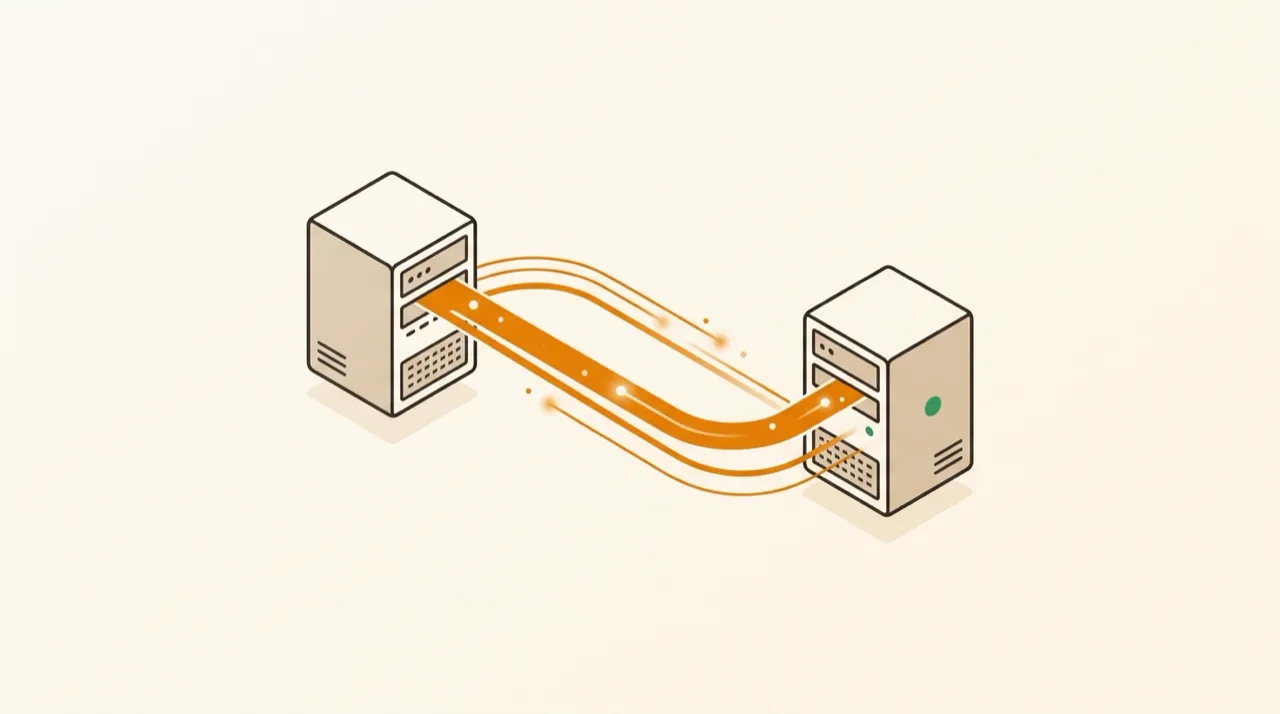
A migration runs as one guided process on the server you are leaving, driven from a browser or from the console. It previews every change, asks before anything irreversible, and keeps a way back until you decide you no longer need one. The first three stages are the same whichever route you take.
Pre-flight checks.
The server is checked before anything moves: supported OS, enough free disk space, and a healthy source panel. If something is off, you find out now rather than halfway through.
Scan and review.
Every account, domain, database, mailbox, and DNS zone is read from the source panel and laid out in a summary. This stage is read-only, and a dry run rehearses the whole process without touching a single file.
Your explicit go-ahead.
Nothing irreversible starts on its own. The backup confirmation and every step that cannot be undone waits for a deliberate confirmation, typed out for the big ones.
Converting in place, the rest happens on the machine you already run.
AdminBolt installs alongside cPanel.
Both panels sit on the machine at once without conflicting, and cPanel keeps serving your sites while AdminBolt gets ready.
Switchover and import.
cPanel steps aside and AdminBolt takes over. Accounts are imported one by one on the same server, so nothing is copied anywhere and the IP never changes.
Decide the ending.
Roll back to cPanel, keep both panels while you verify at your own pace, or remove cPanel for good. Removal is guarded by one more typed confirmation, because there is no undo after that.
Moving to a new server, the old one keeps serving until you say otherwise.
AdminBolt prepared on the target.
If the new server is empty, AdminBolt is installed on it. Plans, accounts, resellers, domains, and per-domain settings are then rebuilt there to match the old server.
Content transfer with live progress.
Website files, databases, and every stored email message copy across while your current server keeps serving traffic the whole time.
DNS cutover on your terms.
Once everything is verified, DNS moves to the new server. If you manage DNS elsewhere, your records stay as they are and you switch whenever it suits you. The old server is never modified, so it stays as a ready-made fallback.
Either route ends with the same full report: every account, what moved, anything that needs attention, and any credentials that had to be regenerated.
How long it takes
First, the part that matters most: none of this is downtime. On a conversion your sites keep serving right up to the switchover, which is the short part at the end. On a move, the old server serves traffic the entire time and only DNS changes at the finish. The figures below are how long the process runs, not how long anything is offline.
| Convert in place | Move to a new server | |
|---|---|---|
| 10 accounts | ~35 min | ~15 min |
| 25 accounts | ~1 hour | ~30 min |
| 50 accounts | ~1 hour 40 min | ~1 hour |
| 100 accounts | ~2 hours 30 min | ~2 hours |
A conversion carries about twenty minutes of fixed setup that a move does not: AdminBolt is installed from scratch on the same machine, a snapshot is taken, and the handover runs. A move spends its time moving data instead, so on a smaller server it finishes sooner.
Treat these as the shape of the answer rather than a promise. They come from our own test runs, and the real figure depends on the hardware cPanel sits on today and the hardware AdminBolt lands on, how much each account actually carries, and the total size of your home directories and databases. Faster CPUs and disks land at the quick end; a busy, underpowered source server takes longer. Tell us what you run and we will put a number on your setup.
Safety by design
The whole process is built to be rehearsed, reviewed, and reversed.
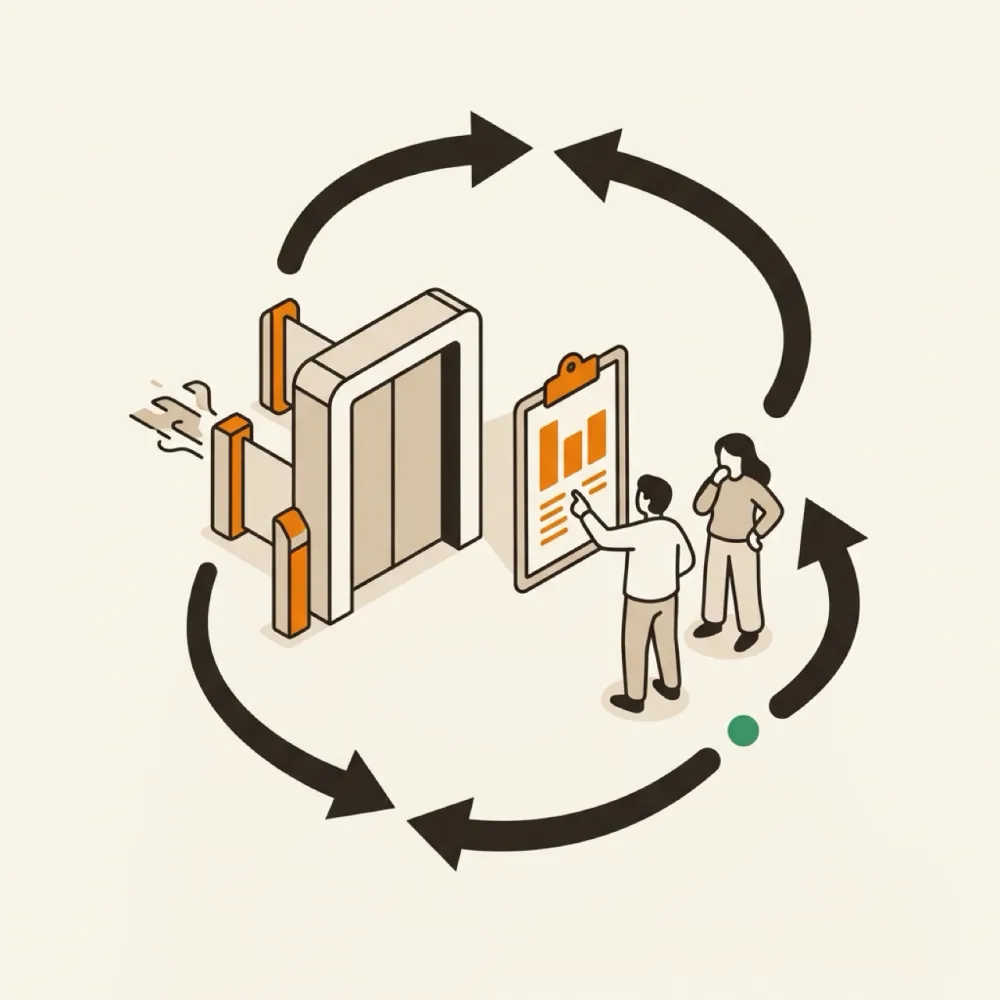
- Dry run first. The entire process can be rehearsed without changing anything, so you see the summary before you commit to it.
- Review gates. Every irreversible step waits for an explicit confirmation. The big ones have to be typed out.
- Rollback. A conversion keeps a journal of every change it makes and can play it back in reverse.
- Safe to re-run. An interrupted run picks up where it left off: accounts that already moved are recognized and skipped, and the rest continue.
- No silent failures. Every account reports its own result, so a problem on one account shows up in the summary instead of being buried.
What comes across
Everything that defines an account: the main domain plus addon, sub, and parked domains, per-domain PHP versions, website files with permissions intact, MySQL databases with their users and privileges, email accounts with all stored messages, forwarders, catch-alls, autoresponders and mailing lists, full DNS zones, SSL certificates, cron jobs, FTP accounts, redirects, hosting plans, and reseller relationships.
Passwords deserve a mention. Mailbox and database passwords are preserved exactly, so applications reconnect and users log in without noticing anything happened. FTP and reseller panel passwords are the exception: they are regenerated for technical reasons, and every new one is listed in the final report so you can hand them over.
After the cutover
Half an hour of checking beats a support ticket three days later. Walk this list before you relax.
- Every site loads. Each domain over HTTPS, including addon and sub domains, with a valid certificate.
- Mail flows both ways. Send from a migrated mailbox and receive to it, and check the message is not landing in spam.
- Applications reconnect. Database-backed sites come up on their own, because database credentials carry over unchanged.
- Scheduled jobs run. Cron jobs fire on the new server at their next scheduled time.
- DNS has propagated. Records resolve to the new server everywhere before you switch anything off.
- The old setup stays put. Keep it until you have watched the new server for a few days. It costs little and it is the cheapest insurance you will buy.
More resources
Ready to leave your old panel behind?
Free migration. Zero downtime. A safety net you keep until you decide you no longer need it.